Creating Custom Groups
Custom Groups are a great way to dynamically (meaning that it will always account for new hires, employees that leave or move around) target recipients based on the criteria available in Communication Hub.
You can use the query builder on the Conditions tab to conduct a Boolean search against recipients record data to find a list of employees that meet a select set of criteria to create a custom group.
You can add individual conditions to an advanced condition or a group of conditions to search the different field values for clients.
For example, perhaps you would like to filter recipients for only the Active employees of a specific client of yours.
You can click drag and drop conditions throughout the Conditions tab to adjust grouped conditions.
You can use the query builder on the Conditions tab with different search conditions and condition groups to filter the list of candidates.
Below are few examples that illustrates how the Boolean logic works while creating custom groups.
Using only the AND operator
While creating a custom group, using the AND operator targets only the records that meet the two defined conditions.
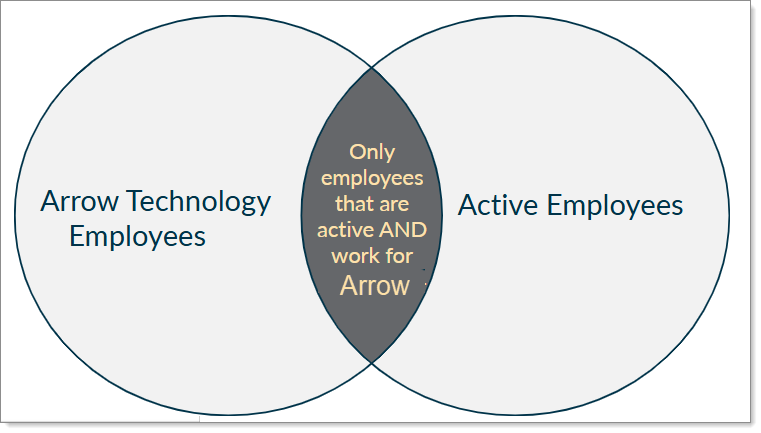
For example, in the image below, while using AND, the rule targets only the employees that work for the Arrow Technologies client AND are Active employees.

The following venn diagram simplifies the above example.
Using only the OR operator
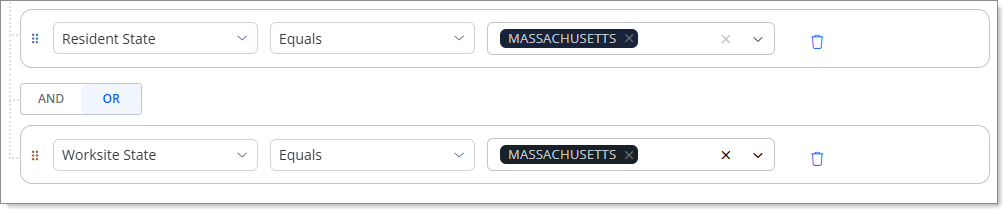
While creating a custom group, using the OR operator targets only the records that either meet any one of the two defined conditions.
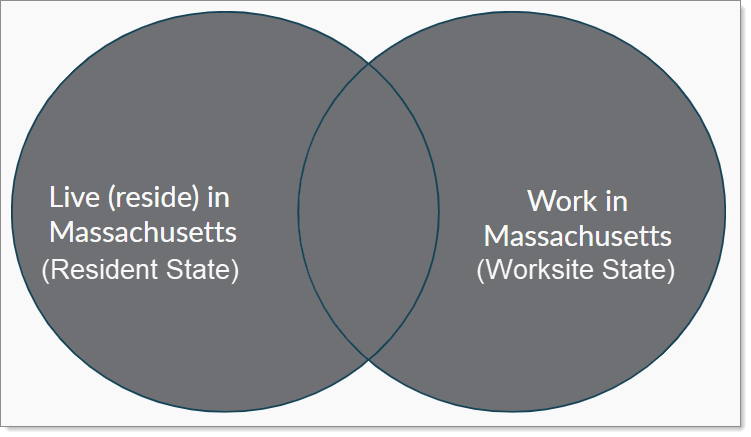
For example, in the image below, while using OR, the rule targets all the employees that live (Resident State) in Massachusetts or work (Worksite State) in Massachusetts.
The following venn diagram simplifies the above example.
Using the Not Equals condition
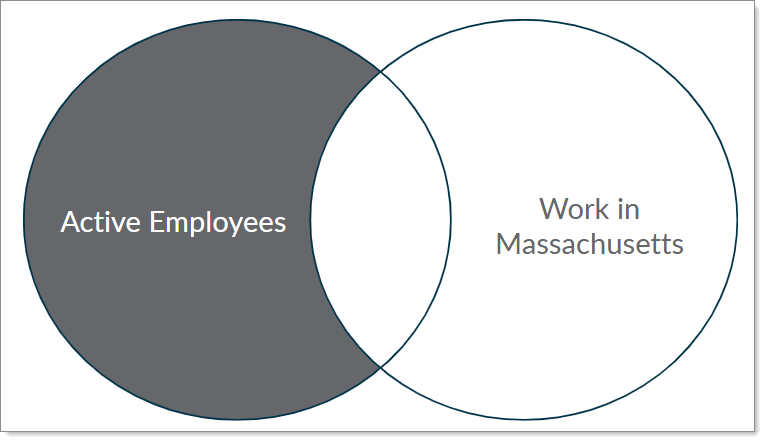
While creating a custom group, when you select any of the condition and choose Not Equals, it targets all the records other than the defined condition.
For example, in the image below, the Not Equals option targets all the Active employees that do not work in Massachusetts.

The following venn diagram simplifies the above example.
Using Complex condition rules
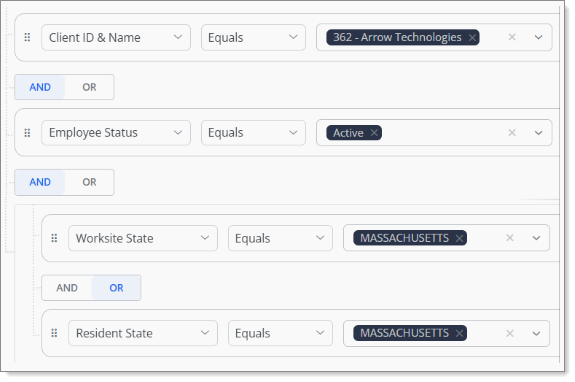
While creating a custom group, you can create a rule of your own depending on your own filter criteria.
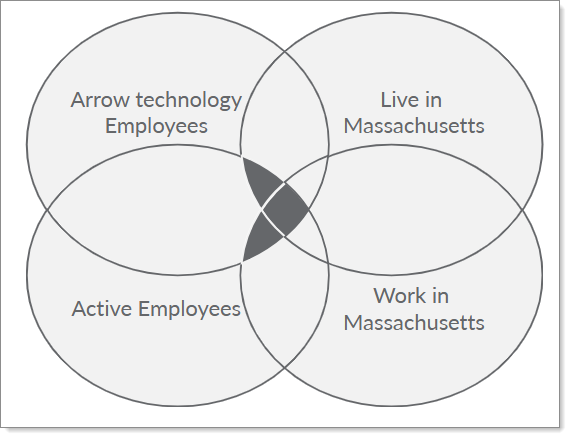
For example, in the image below, the complex rule targets employees that work for Arrow Technologies AND are Active. Additionally, they also need to either work (Worksite State) OR live (Resident State) in Massachusetts.
The following venn diagram simplifies the above example.
See the following examples for detailed information on using different conditions:
