Example 1: Create Custom Groups- Filtering with a Single Condition
You can use a single condition to display only the recipients that meet the specific criteria.
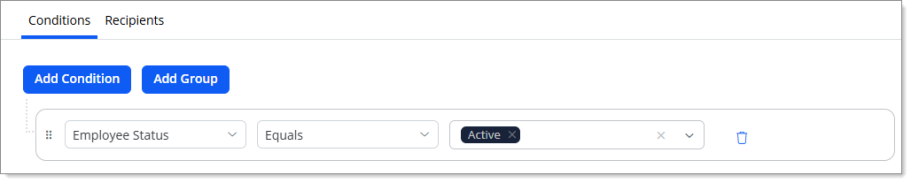
The following example outlines filtering the complete list of recipients for only those employees with Employee Status equals to Active..
On the Conditions screen, complete the following:
-
Under the Add Condition, complete the following:
-
Click the Add Condition button.
-
Click the Select a field drop-down and select Employee Status.
-
Click the Equals drop-down and select Equals.
The following graphic illustrates the Add Condition window with a single condition selected.
-
-
Click the Save
 button.
The Recipients tab is displayed with the results of recipient details that was fetched using the above condition.
The following graphic illustrates the results of selecting a single condition.
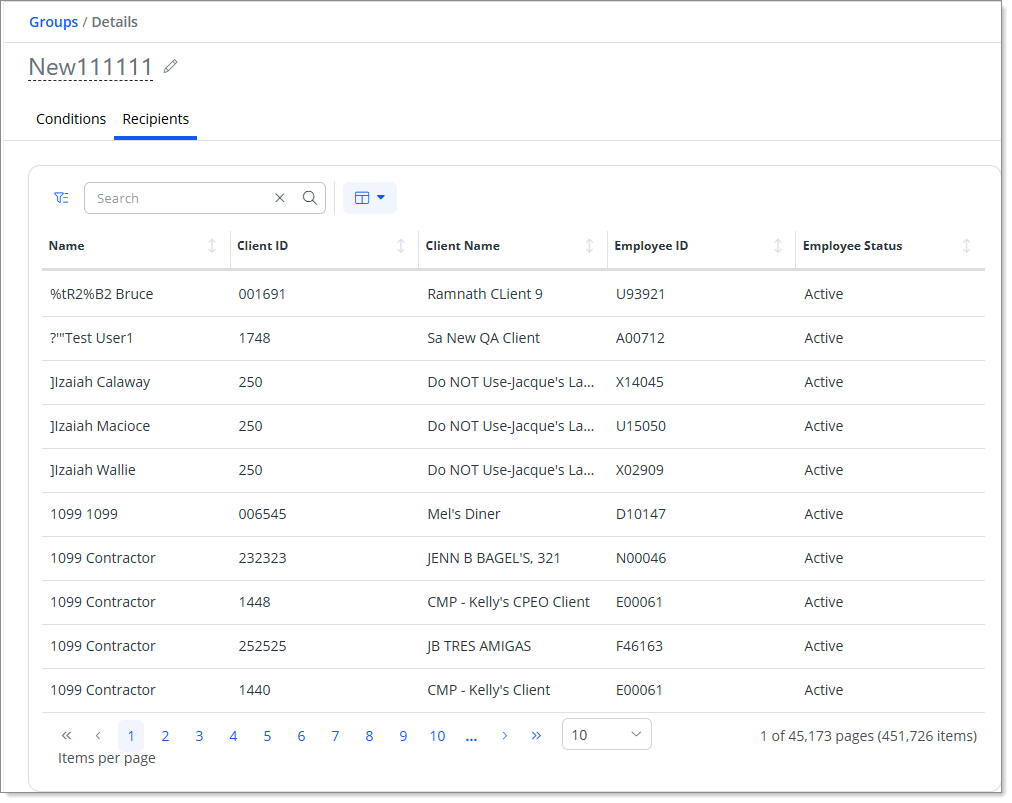
The results in the graphic above include recipient details with a Employee Status value that is equal to Active.
