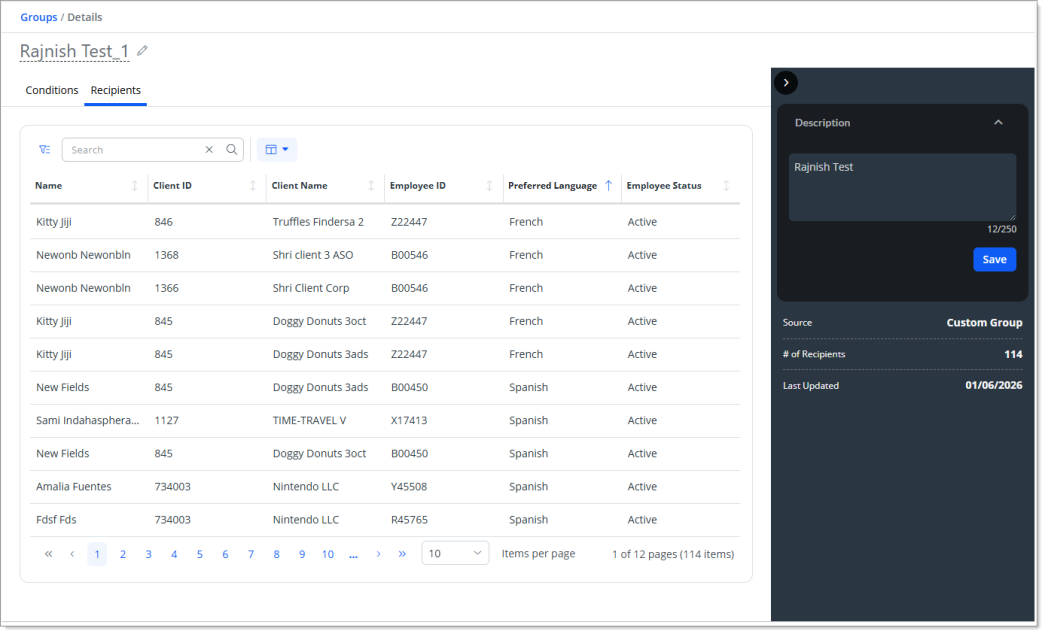
Example 3: Create Custom Groups- Filtering with Condition Groups and Multiple Conditions
You can use multiple condition groups and multiple conditions with an AND or an OR operator to display the recipients that meet the criteria of multiple conditions and condition groups.
The following example outlines filtering the complete list of recipients for only those recipients with the following:
-
A Preferred Language of French and a Employee Status value equals to Active
OR
-
A Preferred Language of Spanish and a Employee Status value equals to Active
-
On the Conditions screen, complete the following:
-
Add the first of two condition groups:
-
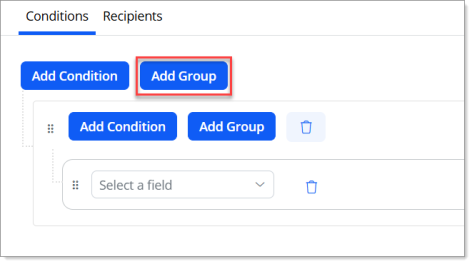
Click the Add Group button.
-
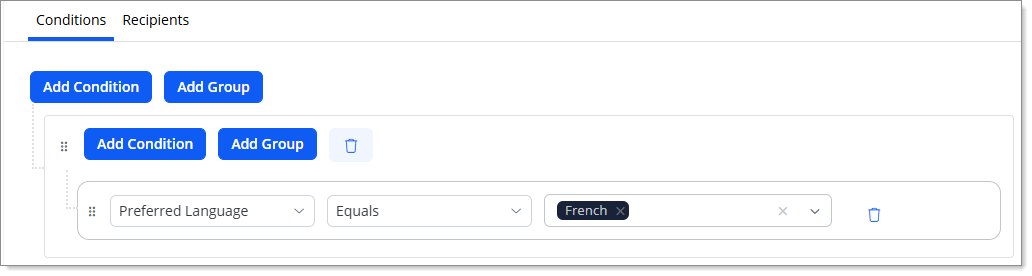
Click the Select a field drop-down for the first condition of the first condition group and select Preferred Language.
-
Select Equals.
-
Click the Select drop-down and select French.
The following graphic illustrates the first condition for the first condition group.
-
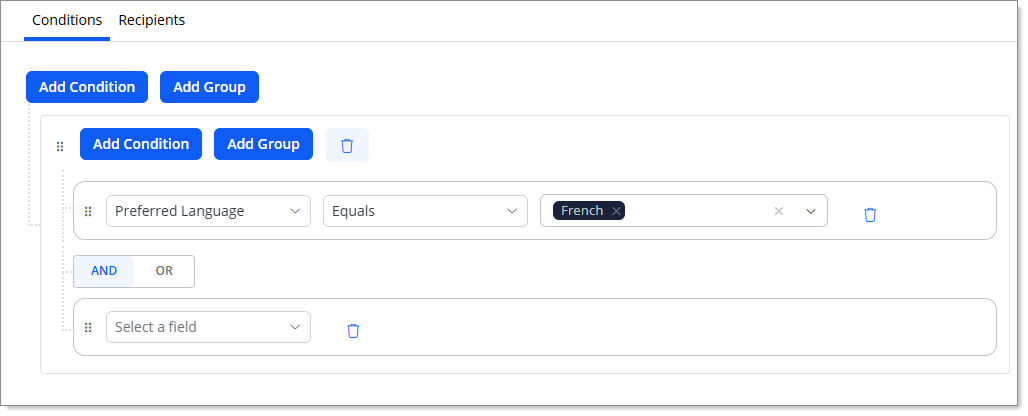
Click the Add Condition
 button of the first condition group.
Note: When you add a second condition to a group or subgroup, the system enables the AND operator for the condition group.
The following graphic illustrates a blank second condition for the first condition group.
-
Click the Select a field drop-down and select Employee Status.
-
Select Equals.
-
Select the Active value.
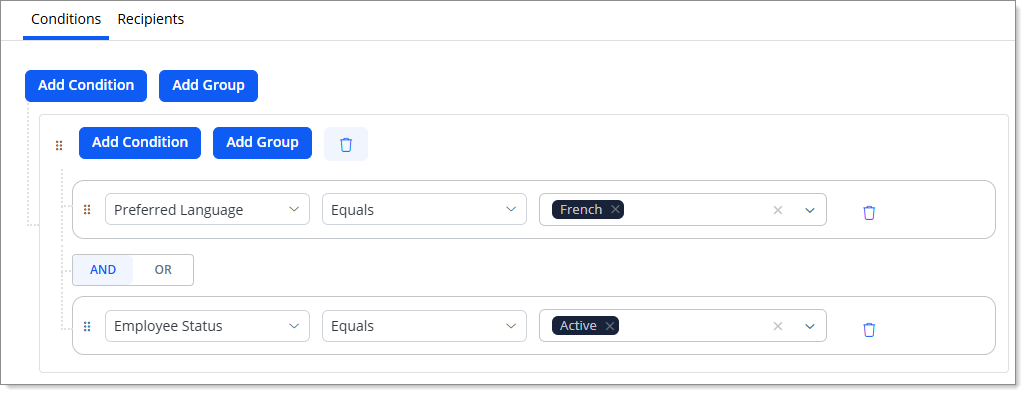
The following graphic illustrates the second condition for the first condition group.
-
-
Add the second of two condition groups:
-
Click the Add Group button.
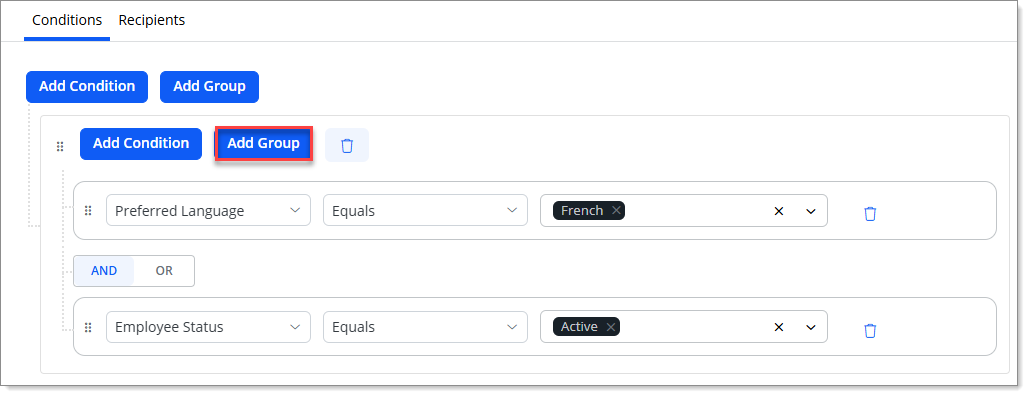
Note: When you add a second condition to a group or subgroup, the system enables the AND operator for the condition group.
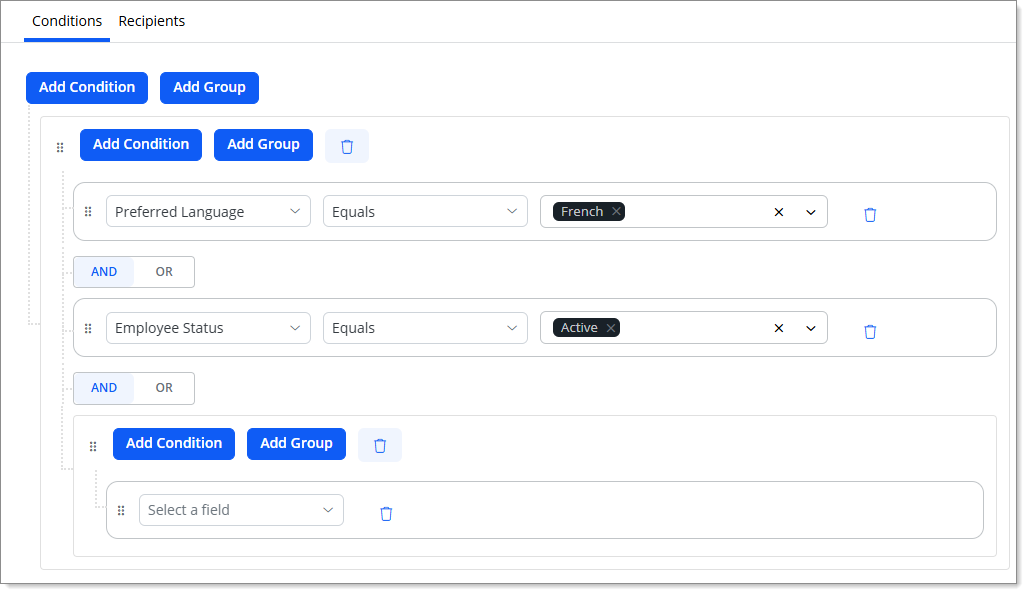
The following graphic illustrates the second of two condition groups.
-
Click the OR button for the main condition group.
-
Click the Select a field drop-down for the first condition of the first condition group and select Preferred Language.
-
Select Equals.
-
Click the Select drop-down and select Spanish.
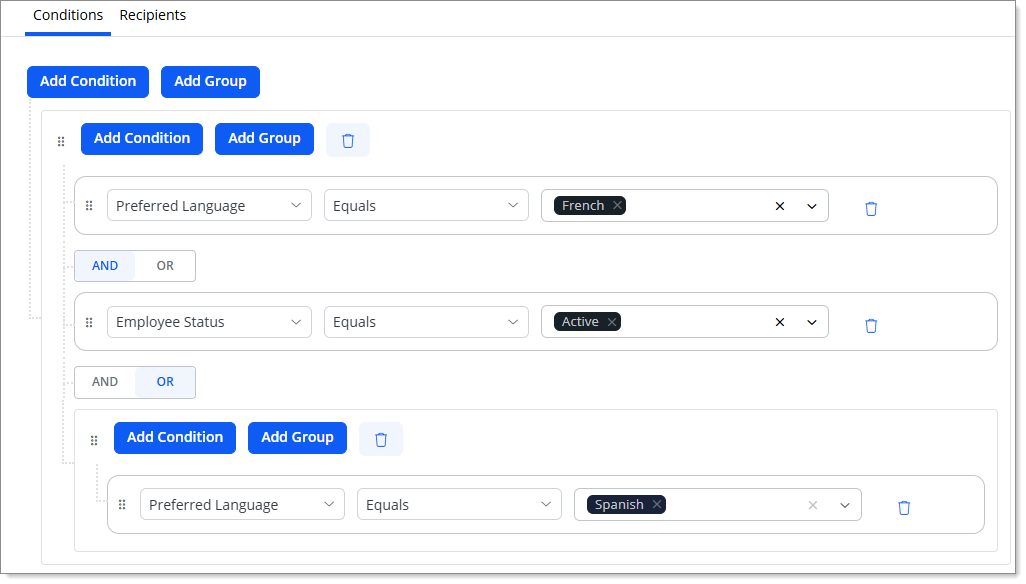
The following graphic illustrates the first condition for the second condition group.
-
Click the Add Condition
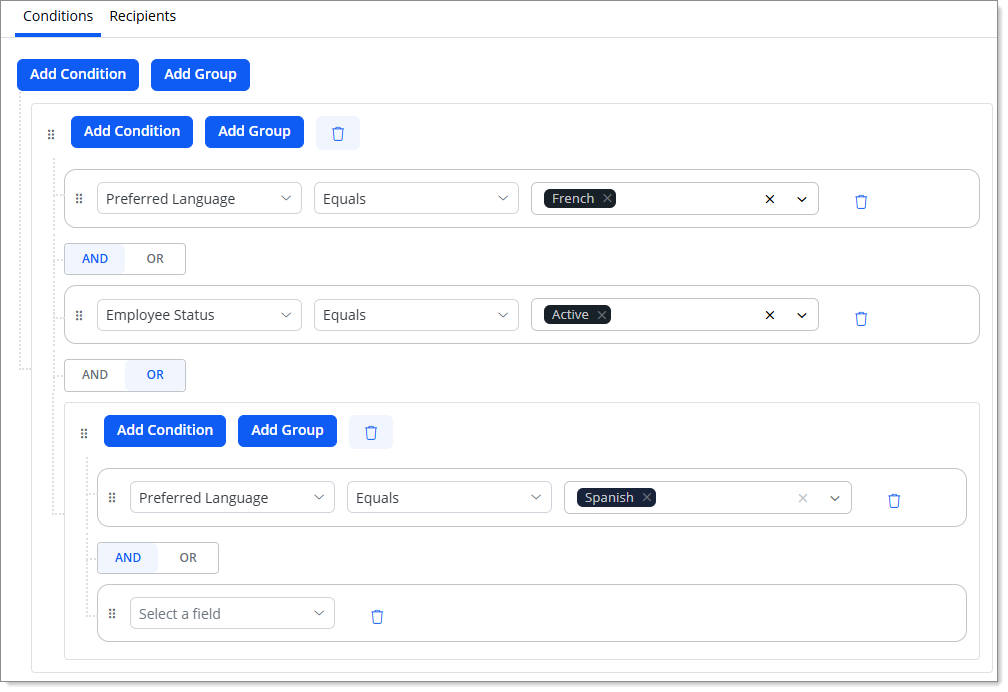
button of the second condition group.The following graphic illustrates a blank second condition for the second condition group.
-
Click the Select a field drop-down and select Employee Status.
-
Select Equals.
-
Select the Active value.
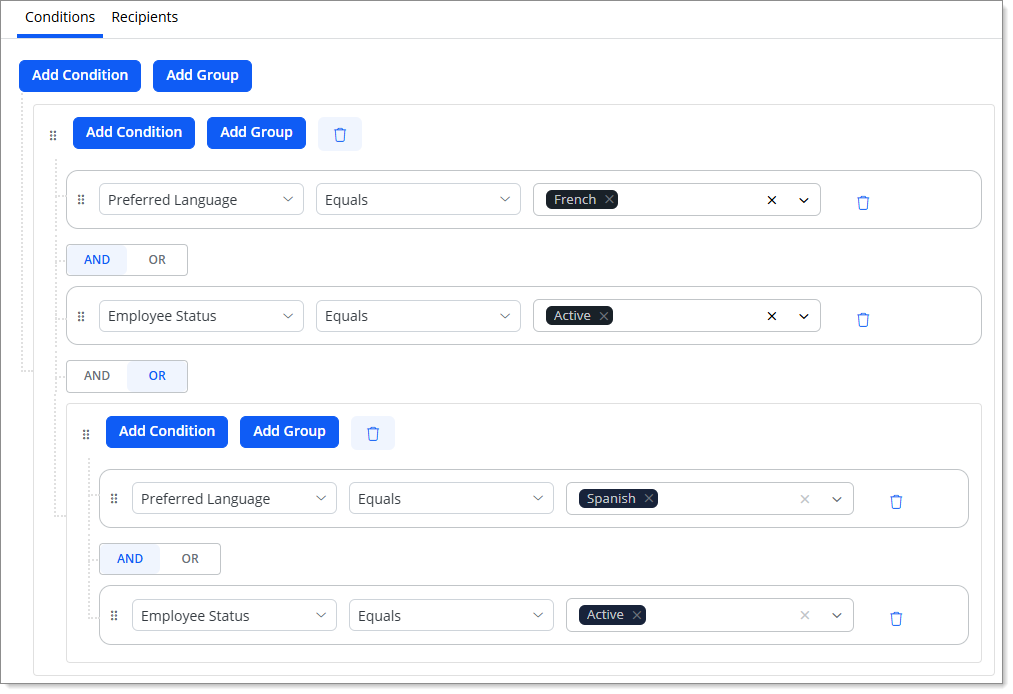
The following graphic illustrates the second condition for the second condition group.
-
-
-
Click the Preview
 button. The Group Preview pop-up screen is displayed where you can preview the list of recipients details fetched using the above group conditions. Please note that if there are more than 25 records, the Group Preview pop-up only displays the first 25 records.
 -
Once you have previewed the results, click Save. A success message is displayed stating, Your conditions have been saved, and the recipient list is now being updated. and the results are displayed on the Recipients tab.
The following graphic illustrates the results of selecting two condition groups with two conditions each while using the OR operator between groups and the AND operator within each group.